
Most dashboards are designed from the data outward: here are the tables, which charts can we make? The result is usually a page full of visuals that are all correct and none of which answers the question the user came with.
A data product is designed the other way around, from the user inward. Who will open it, what do they need to decide, and what will they do next? The charts come last.
Start with decisions, not data
Before opening Power BI, answer four questions for each type of user:
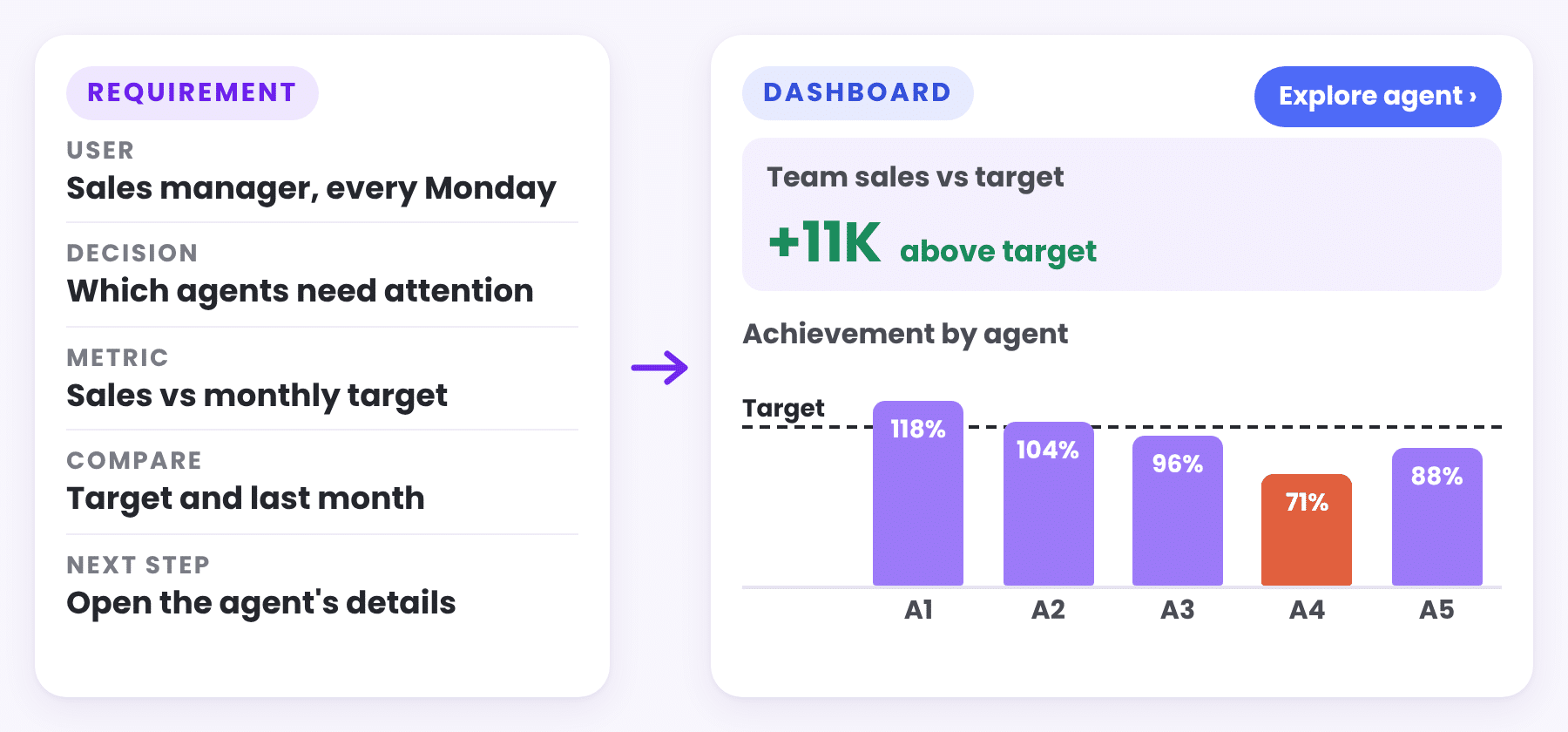
- Who opens it, and how often? A sales manager every Monday is a different user from a CFO once a month.
- What do they decide? For example: which agents need attention this week.
- What do they compare with? A target, last year, the previous month or other agents.
- What happens next? If a number is bad, where do they need to go to understand why?
Write the answers down in one short card per user. They become the brief for everything that follows.
Define every metric before building
“Sales” sounds clear until two people calculate it. Before any chart is built, each metric gets a short definition: what it includes, what it excludes and which date it uses. For example: Net Sales: invoices minus returns, before VAT, by invoice date. Disagreements are much cheaper to settle on paper than in a management meeting, and the same definitions later become the measures in the model. How those measures sit in the model is covered in The Data Model Behind a Good Dashboard.
Design the flow before the visuals
A good data product is a path, not a collection of pages: an overview that shows how things are going, an explore view that shows where the change comes from, and a details page that shows exactly what happened. Sketch that path on paper first, with the buttons that connect the steps. We describe this flow in From Dashboards to Analysis Systems: What Power BI Can Do Today.
The design details that make the difference
- Numbers, not labels: “+11K above target” on a KPI card says more than “On track”.
- A comparison next to every number: a value without context means very little.
- Columns for comparisons: vertical columns are the easiest way to compare items side by side.
- Filters in one place: general filters at the top of the page, and filters that belong to one table directly above it.
- Sensible defaults: the page opens on the current month and year, based on the last date in the data.
- Consistent colors: the same color always means the same thing, for example returns always in light red.
Build, test with real users, improve
Build a first version, then give it to two or three real users with a real question, and watch where they click. Where they hesitate, the design needs work. Check the key numbers against a source everyone trusts. Release a focused first version, and add pages when users ask for them, not before.
From question to product: a checklist
| Stage | What you have at the end |
|---|---|
| Decisions | One card per user: who, what they decide, compared with what |
| Metrics | A short definition for every number on the page |
| Flow | A sketch of overview, explore and details, and how they connect |
| Build | A clean model, measures and pages that follow the sketch |
| Test | Feedback from real users and numbers checked against the source |
Keep reading
From the BistarData shop
Designed around the people who use them
Every BistarData dashboard starts from a role and the questions it asks, in the order it asks them:
- Sales Team Scorecard: for sales managers, who is on target and who will make it
- Sales Journey: Quote to Invoice: for sales operations, from quote to invoice
- Customer Compass: for account managers, which customers to call
- Delivery Flow: Order to Doorstep: for logistics, what is late and why
- Insight Studio: for analysts, Self Service without the chaos