

Ask most people what Power BI is and they will describe a dashboard: a page of KPI cards, a few bar charts and a date slicer. That is how many reports are still built, and it is why so many of them are opened once and then forgotten.
A manager rarely needs another chart. They need answers to three questions: what changed, why it changed, and where to look first. Today Power BI can answer all three inside the report itself. With the right model and design, a report becomes an analysis system. It guides the user from the big picture down to the single transaction behind it, in a few clicks, without exporting anything to Excel.
A dashboard shows. An analysis system guides.
The difference is not in the charts. It is in what happens after the first glance.
| A static dashboard | An analysis system | |
|---|---|---|
| Starting point | Many charts competing on one page | One overview that answers “how are we doing?” |
| Navigation | Page tabs at the bottom | A menu and buttons that follow the order of the analysis |
| Getting to detail | Export to Excel and filter there | Drill down and drill through to the record level |
| Time periods | A date filter the user has to set | Current month and year set automatically and compared like for like |
| Explaining change | The user has to read the chart | The report writes the insight in words |
| Flexibility | One fixed view | The user chooses the metric, the breakdown and the comparison |
The flow: from the big picture to a single record
A good analysis system is built as a path, not as a collection of pages. Every step answers one question and leads naturally to the next.
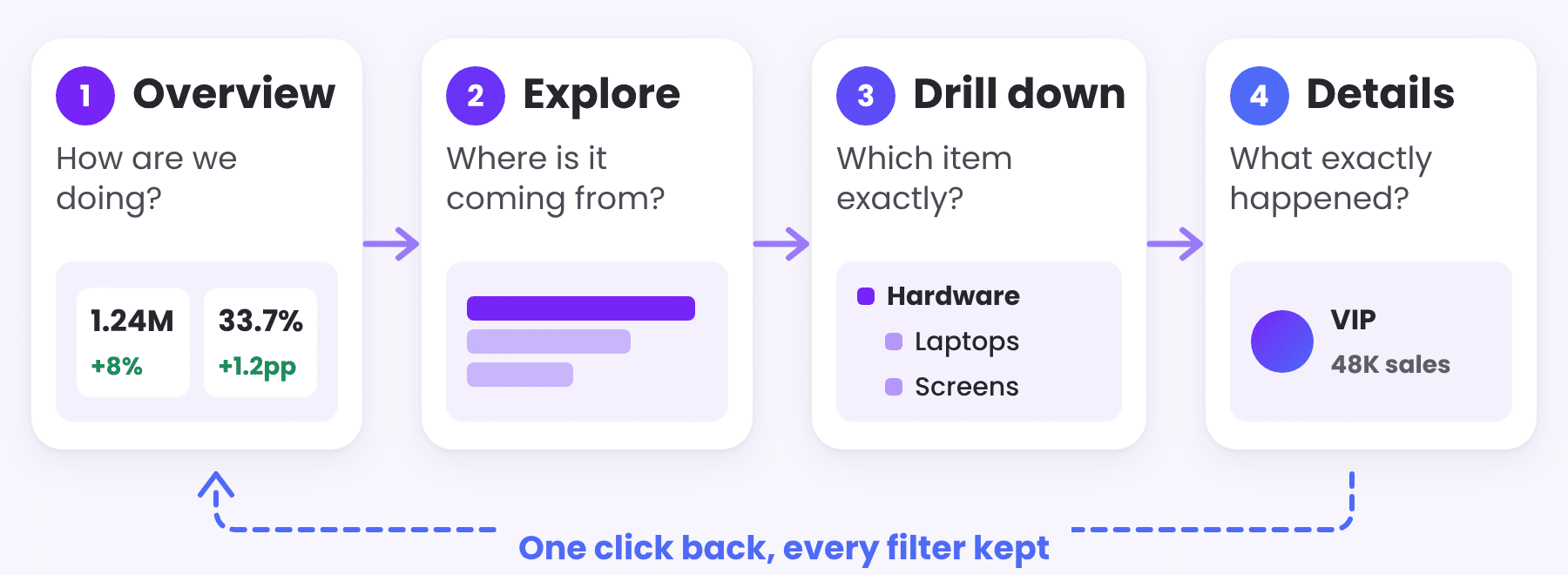
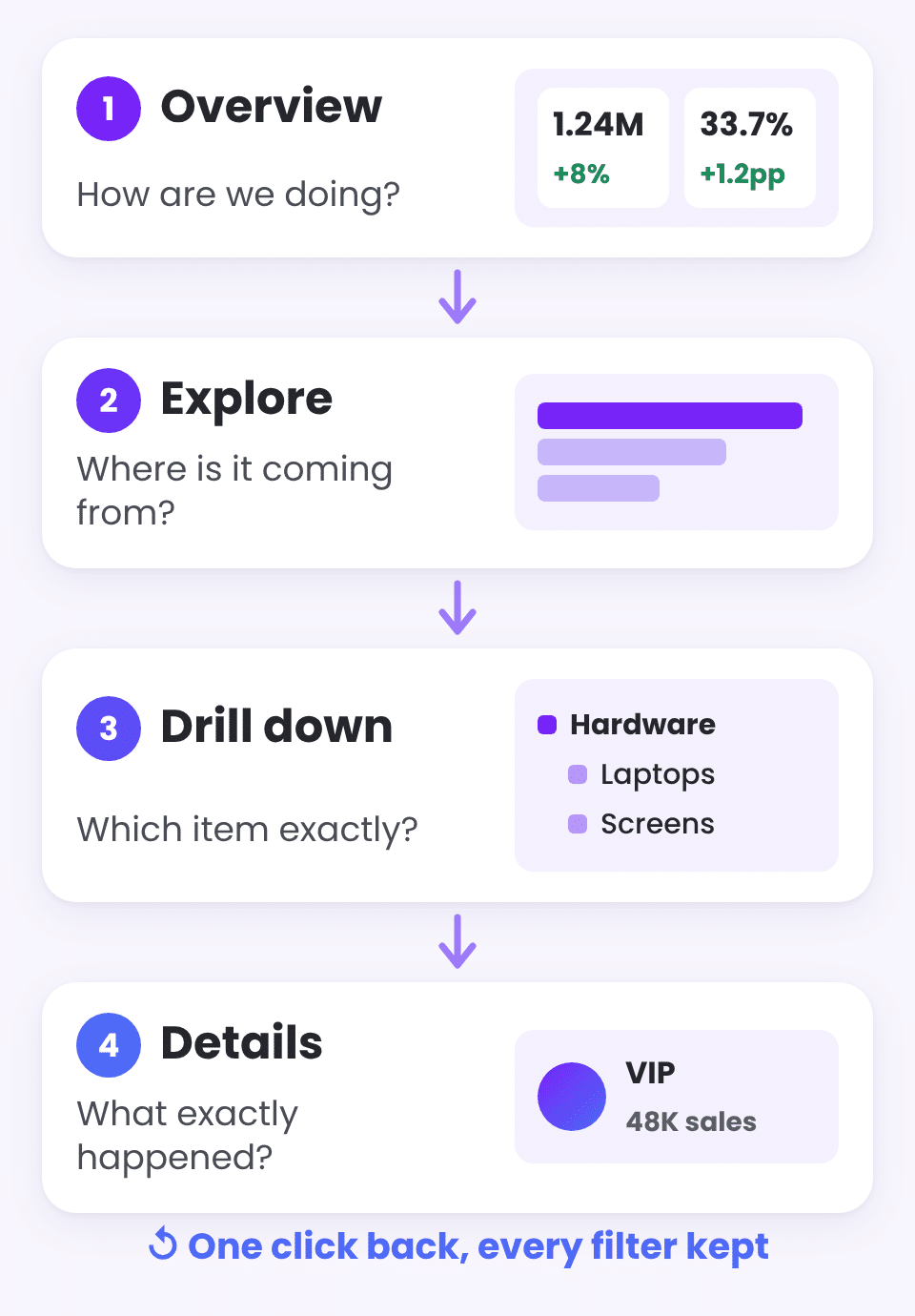
- Overview: how are we doing? A handful of KPIs, each with its change against last year or the previous period. Numbers, not adjectives: “+11K above target” says more than “On track”.
- Explore: where is it coming from? The same numbers broken down by the dimension that explains them, such as region, agent, category, supplier or customer. An Explore button opens this view already filtered to where the user came from.
- Drill down: which item exactly? Inside the same chart, one click moves from category to product, or from year to month to day.
- Details: what exactly happened? A dedicated page for one customer, product or order, with its full history. The user gets there by drill through and goes back with one click, with every filter kept.
The user never has to wonder where to click next or what a page is for. The design does that work for them.
Drill down and drill through are not the same
Both lead to more detail, but in different ways, and a good report uses both.
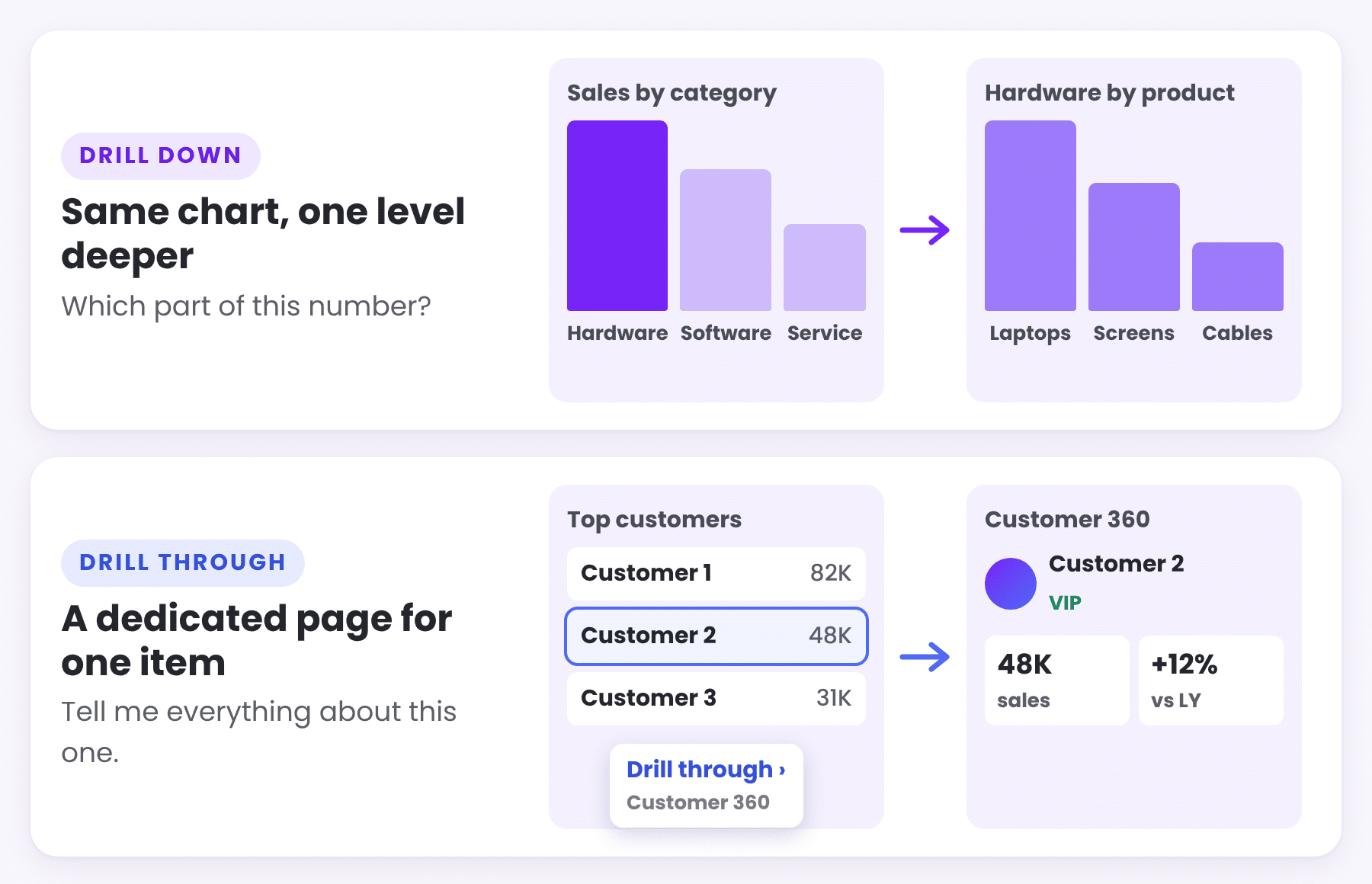
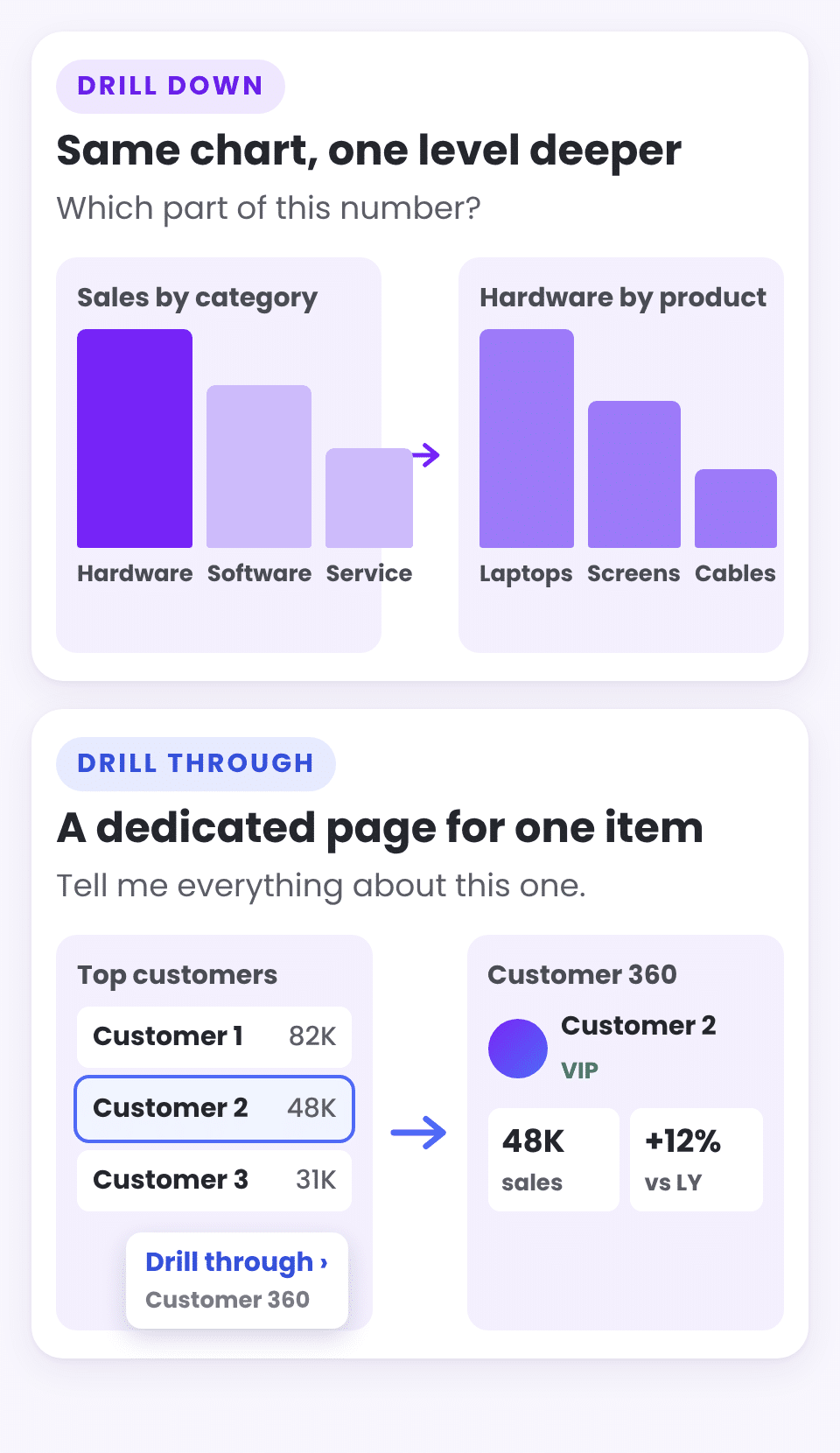
Drill down stays in the same visual and moves down a hierarchy: from category to product, or from year to month. It is the right tool when the question is “which part of this number?”
Drill through opens a separate page built for one item and carries the selection with it. Right-click a customer in any chart, choose Drill through, and a Customer 360 page opens with that customer’s sales, products, trend and status. It is the right tool when the question is “tell me everything about this one”.
Insights in words, not just charts
Not everyone reads charts well, and nobody has time to read twenty of them. With DAX measures, a report can compare periods on its own and write the conclusion as a sentence that updates with every filter:
Sales −8% vs last yearVolume −3%Margin +1.2 pp
Service drove the drop (−48K), partly offset by Hardware (+12K).
Recommended action: review discounts on the three Service products with the largest decline.
Add status signals and a short recommended action, and the report stops being something to interpret and becomes something to act on. The rules behind those signals work best when they are relative, comparing each item with its own history or with its peers, so the same report makes sense for a small business and a large one.
Self Service without the chaos
Classic Self Service means giving users an empty canvas and a field list, and most of them never use it. Power BI now offers a better middle ground. Field parameters and buttons let users choose the metric, the breakdown and the comparison period from simple selectors, while the model, the measures and the design stay consistent. One flexible page can replace a dozen fixed ones.
Time periods handled for you
Two small details decide whether people trust a report. First, the current month and year should be anchored to the last date in the data, not to today’s date, so a report that is refreshed weekly never looks half empty. Second, comparisons should be like for like: the first 12 days of this month against the first 12 days of last month, not against the whole month. Both take a few lines of DAX, and both prevent a lot of confusion in meetings. We show how this looks in a real sales report in Where Sales Leak Between the Quote and the Invoice.
The building blocks Power BI offers today
- Buttons, page navigation and bookmarks to build menus, guided paths and views that switch in place.
- Drill down and drill through to move from totals to records while keeping the context.
- Report page tooltips that show a small detail view when the user hovers over a data point.
- Field parameters that let users change what a visual measures or how it is broken down.
- DAX measures for time comparisons, rankings, targets and written insights.
- What-if parameters to test a scenario, such as a price change or a new target, before acting on it.
- Conditional formatting to turn numbers into clear signals.
Why most reports never get there
None of these features is new or hidden. What is rare is putting them together. It takes a clean data model with facts, dimensions and a proper date table, measures that are defined once and reused everywhere, and a design planned around the questions people ask, in the order they ask them. That is closer to building a product than to building a chart.
Keep reading
From the BistarData shop
This is how we build our dashboards
Our dashboard templates are built as analysis systems, not as pages of charts: an overview, a clear flow between screens, Explore buttons, drill down to the detail level and insights written in words. Each one focuses on a different business question:
- Sales Journey: Quote to Invoice: every sale from the first quote to the final invoice, including returns.
- Sales Signals: what changed in sales, why it changed and what to do next, in plain language.
- Sales Team Scorecard: every agent against a monthly target, with a month-end forecast.
- Customer Compass: RFM segmentation, customers at risk and a Customer 360 page by drill through.
- Insight Studio: users choose the question and the report writes the answer, without editing the report.
- Delivery Flow: Order to Doorstep: every delivery from order to doorstep, with lead time by stage.