

Almost every business report compares periods: this month against last month, this year against last year. It sounds simple, and it is one of the most common sources of wrong conclusions in reporting. A report that compares the wrong periods can show a crisis that does not exist, or hide one that does.
Anchor “today” to the last date in the data
Most reports are refreshed once a day or once a week, so the data always stops a little before today. If “this month” is calculated from the calendar date, the current month looks incomplete, and the last few days always show as zero. The fix is simple: define the current month and the current year by the last date that actually has sales in the data.
The same idea gives a useful extra view: the last sales day. It shows the most recent day with data, whether that was yesterday or last Friday.
Month to date against the same days last year
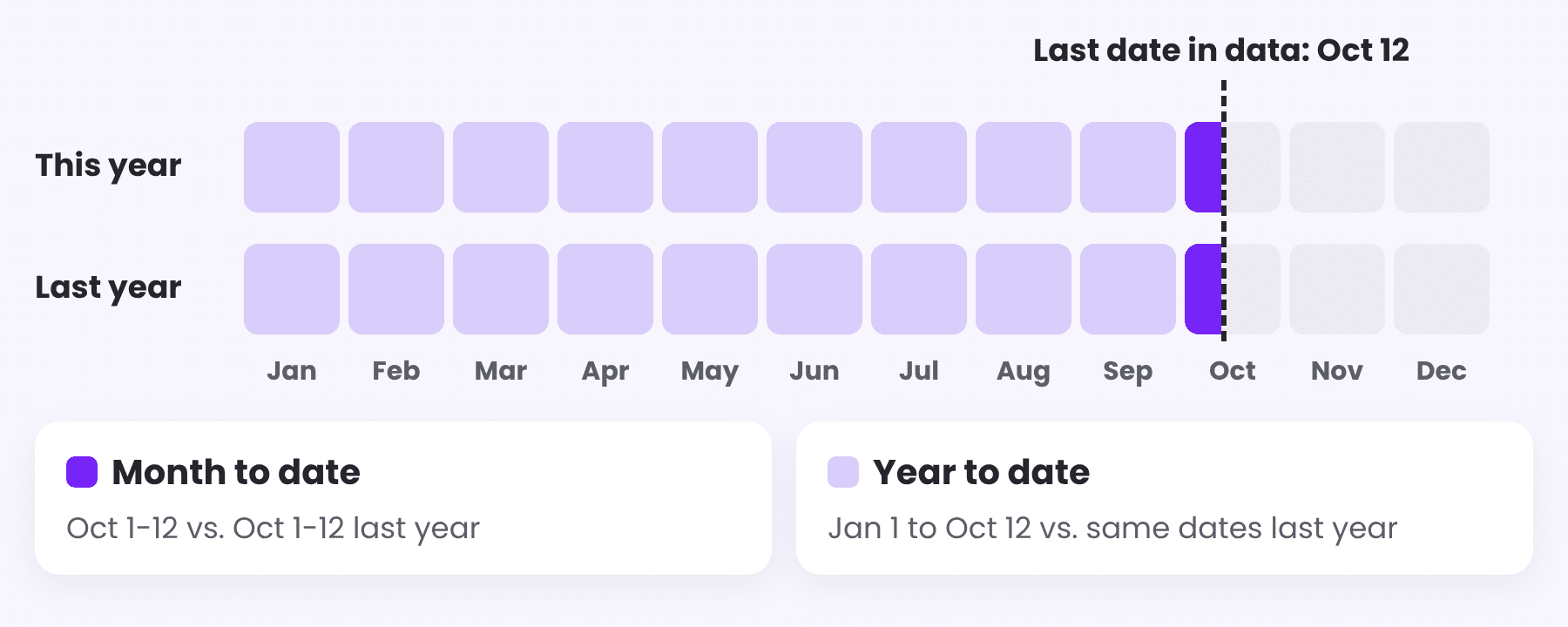
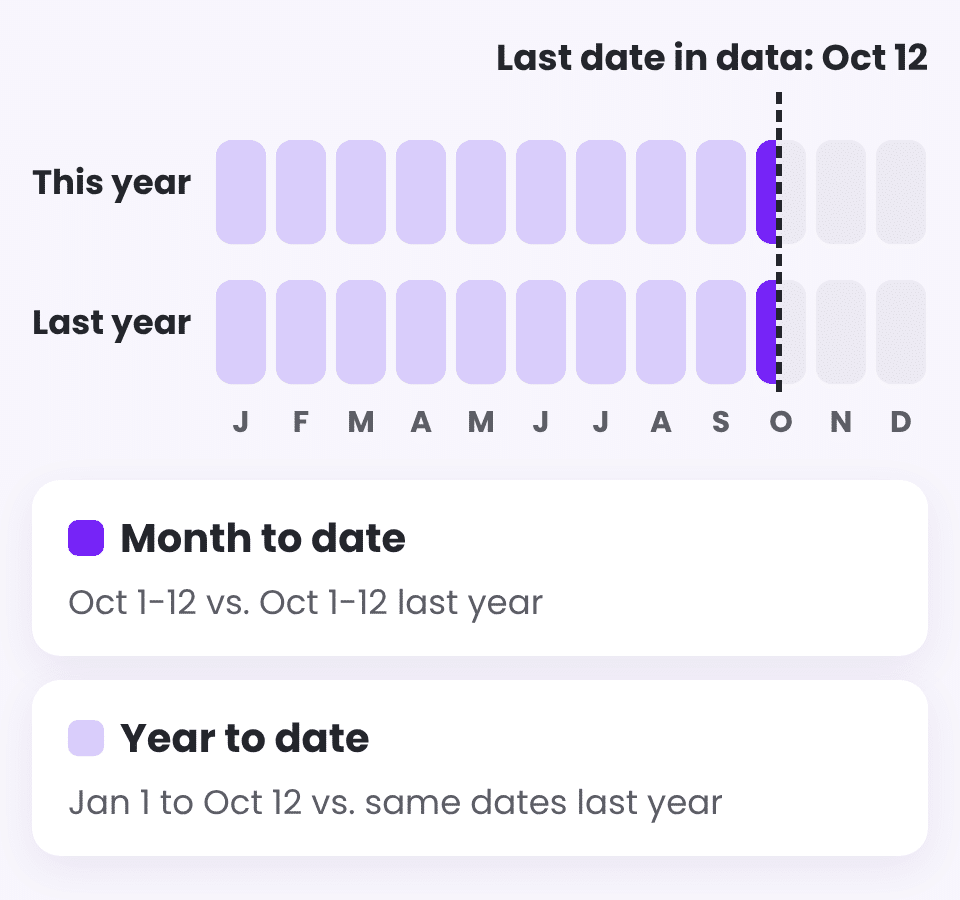
If the data ends on October 12, month to date covers October 1 to 12. The fair comparison is October 1 to 12 last year, not the whole of October last year. Comparing 12 days with 31 makes every month look like a sharp decline until the very end of the month.
Year to date for the real trend
Single months are noisy. One large order, a holiday or a late shipment can move a month by double digits. Year to date compared with the same dates last year smooths that out and shows the direction of the business. A rolling 12 months adds a view that does not reset every January.
Previous month: useful, with care
Comparing with the previous month catches recent changes faster than a comparison with last year, but it also includes seasonality: December against November tells you more about the calendar than about performance. Months also differ in length. Show the previous month next to last year, not instead of it, and compare the same number of days.
Working days matter
For businesses that sell mainly on working days, a month with two extra holidays will look weaker even if every day was just as good. Where that matters, add sales per working day next to the total.
Let users choose the period, safely
Two separate date filters, one for the current period and one for the comparison, are an invitation to mistakes. A better design gives users a few clear choices, such as last sales day, month to date, year to date or a custom range, and lets the report calculate the matching comparison by itself.
| Period | Compare with | Watch out for |
|---|---|---|
| Last sales day | Same weekday last week or last year | Weekends and holidays |
| Month to date | Same days last year or last month | Comparing part of a month with a whole month |
| Year to date | Same dates last year | Calendar today instead of the last date in the data |
| Rolling 12 months | Previous 12 months | Partial current month |
These two details also make the difference in Where Sales Leak Between the Quote and the Invoice, where period comparisons decide whether quotes, orders and invoices look healthy.
Keep reading
From the BistarData shop
Smart date selection, built in
Sales Dashboard: Smart Date Selection lets users switch periods in one click:
- Last Sales Day, Month to Date, Year to Date and Custom Date Range
- Last Sales Day follows the latest available date in the data
- Dynamic comparison with the same period last year
The same logic, with the current month and year based on the last sales date, is built into our other sales dashboards as well.